
Les 3 minutes Analytics – Comment utiliser le node Wait dans KNIME ?
Félicitations ! Vous avez presque fini l’intégralité de votre parcours des 3 Minutes Analytics. Pour terminer ce quatrième parcours KNIME Expert, vous serez en mesure de manipuler le node WAIT dans KNIME. Cet article est inclus dans notre série Les 3 minutes Analytics ! Une série d’articles sur le blog Mydral consacrée à la plateforme KNIME.
 Mydral vous propose également de découvrir en vidéo ce tutoriel :
Comment utiliser le node WAIT dans KNIME ?
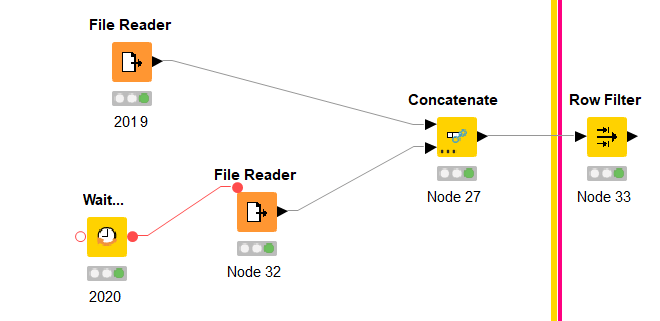
Dans cet exemple notre fameuse entreprise Sport-up m’a transmis les fichiers concernant les commandes de l’année 2019 et les commandes de l’année 2020. Cependant, le fichier de 2020 doit être modifié tous les mois.
C’est-à-dire qu’à chaque fois que je relancerai mon workflow pour concaténer mon fichier 2019 et 2020, le node wait… mettra à jour mon fichier à chaque modification de celui-ci.
Quelles possibilités avec ce node ?
Un node, trois possibilités !
- Première possibilité : Wait for time pour attendre que le temps choisi soit écoulé
- Deuxième choix : Wait to time pour attendre l’heure choisi
- et enfin : Wait for file pour attendre que le fichier soit créer, modifier ou supprimer
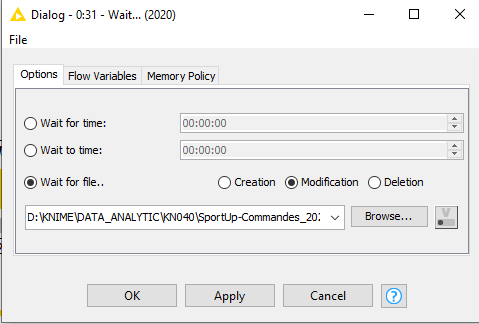
Dans cet exemple, je demande au node Wait de mettre à jour mon fichier à chaque modification.
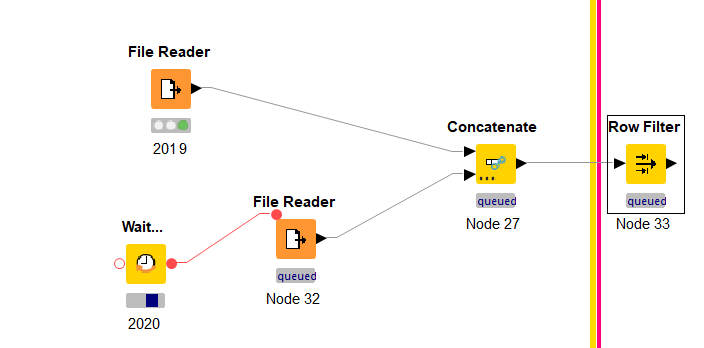
Lorsque j’exécute mon workflow je constate que mon fichier 2019 à correctement été lu car la couleur verte me l’indique, tandis que mon node Wait.. pour le fichier 2020 est toujours actif :
Ici, je change le numéro de la première ligne de l’ID Commande directement sur mon fichier.
Et lorsque je retourne sur mon workflow, celui-ci s’est correctement exécuté.
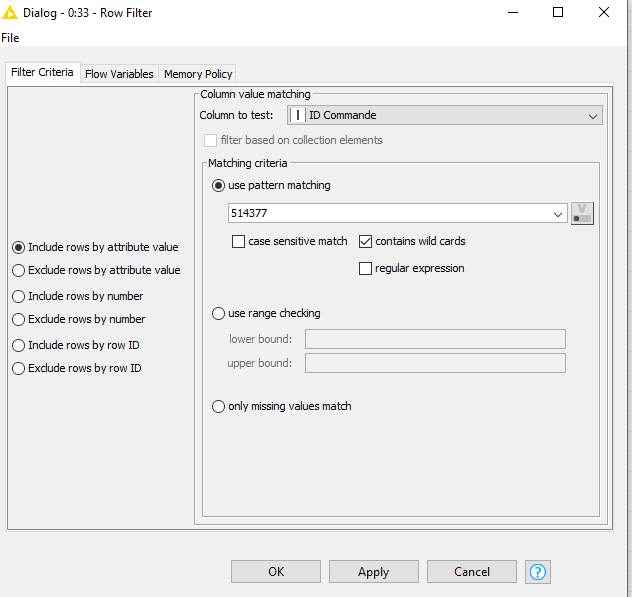
Je retrouve grâce au node Row filter l’élément modifié en y ajoutant le nom de la colonne et le numéro modifié.
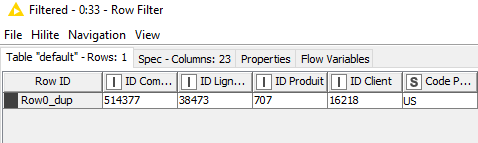
Résultat, l’élément a bien été modifié :
C’est tout pour moi ! 🙂
Je clôture le parcours KNIME Expert avec cet article qui j’espère vous sera très utile.
Retrouvez l’ensemble des tutoriels dans notre rubrique Les 3 Minutes Analytiques. Vous avez commencé par le mauvais module ? Pas de panique ! Pour suivre nos autres modules et débuter votre premier parcours avec KNIME Beginner, KNIME Rookie et KNIME Jedi avant de devenir un KNIME Expert !
Votre parcours nous intéresse ! Parlez-nous de votre retour d’expérience en commentaires !
Suivez-nous sur les réseaux sociaux : LinkedIn & Twitter !
Author Profile

Latest entries
 La minute Analytics5 août 2020Les 3 minutes Analytics – Comment utiliser le node Wait dans KNIME ?
 La minute Analytics31 juillet 2020Les 3 minutes Analytics – Comment manipuler un node de configuration dans KNIME ?
 La minute Analytics31 juillet 2020Les 3 minutes Analytics – Comment lire une liste de fichiers dans KNIME ?
 La minute Analytics30 juillet 2020Les 3 Minutes Analytics : comment pivoter sa table dans KNIME?